Explain That Code: From Copy-Pasting Code into ChatGPT to Building My Own Chrome Extension

Introduction
I got tired of copying code into ChatGPT just to understand it, so I built a Chrome extension that brings AI explanations directly into the current tab.
Every developer has been there.
You’re reading documentation, browsing GitHub, or scrolling through a Stack Overflow answer when you come across a piece of code that doesn’t quite make sense.
My instinct was always the same.
I would highlight the code, copy it, open ChatGPT, paste it, and ask for an explanation.
It worked. But after doing it dozens of times a day (yes, I am so bad, i know…), I realized the process itself was slowing me down. Every explanation required leaving the page, switching tabs, and repeating the same sequence of actions.
One day I caught myself doing it again and thought:
Why am I moving the code to AI? Why can’t AI come to the code?
That simple question became the idea behind Explain That Code.
Instead of interrupting my workflow every time I wanted to understand a snippet, I built a Chrome extension that lets me explain code without ever leaving the page.
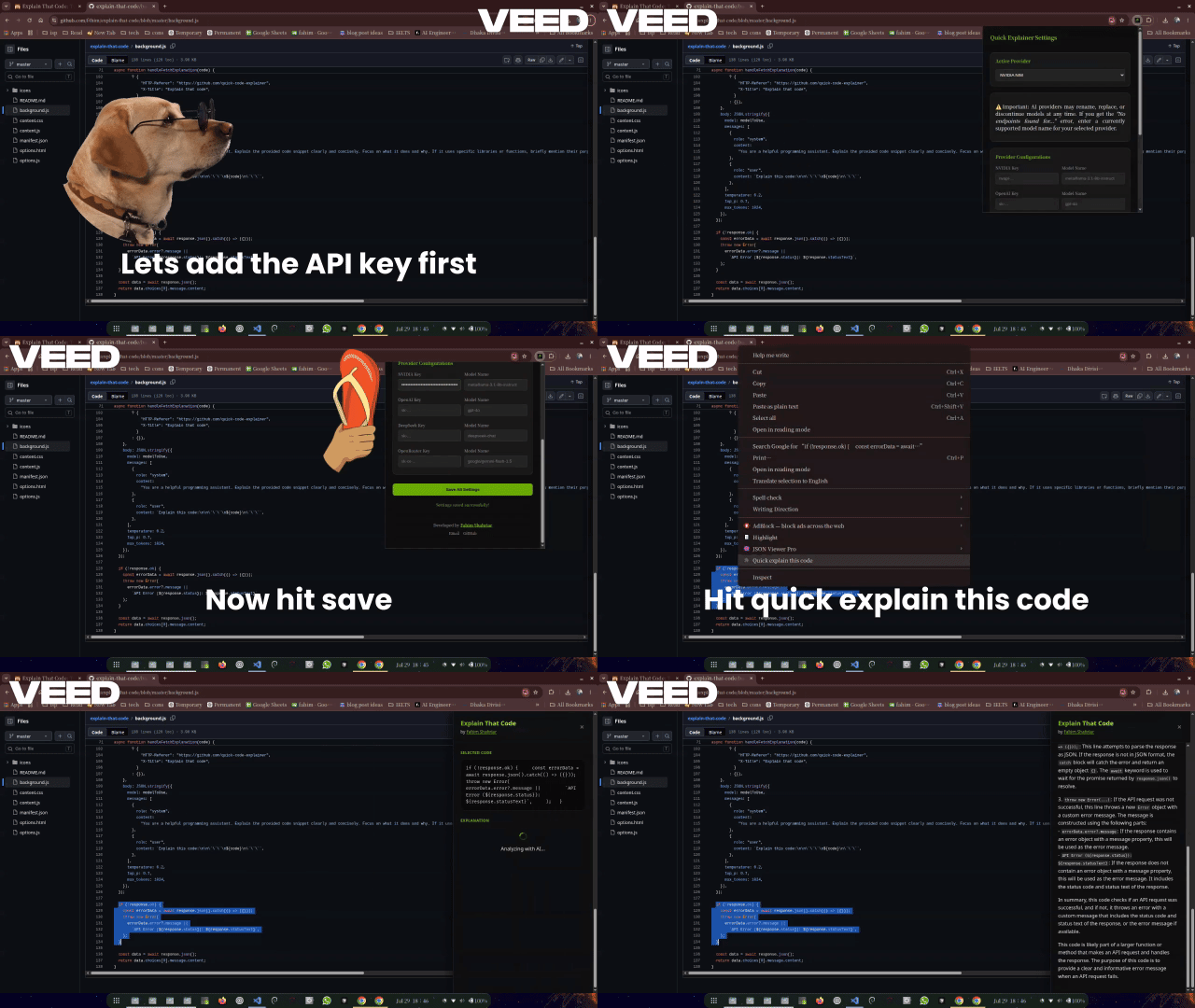
Now the process is simply:
- Highlight the code.
- Right-click.
- Click Quick Explain This Code.
The extension handles everything else.
Why I Built It
The goal was not to create another AI chatbot.
There are already many excellent ones.
Instead, I wanted to reduce friction.
Developers already spend most of their time inside the browser:
- GitHub
- Stack Overflow
- Documentation
- Tutorials
- Blogs
Rather than switching tabs every few minutes, the extension lets developers stay focused while still benefiting from AI assistance.
Features
Right-Click Context Menu
The extension adds a custom entry to Chrome’s context menu.
Whenever text is selected, users can simply choose:
Quick Explain This Code
No copy-paste.
No additional windows.
No unnecessary clicks.
Multi-Provider AI Support
Instead of locking users into a single AI provider, the extension supports multiple APIs.
Currently supported:
- NVIDIA API (Free api available in some countries)
- OpenAI (Paid)
- DeepSeek (Paid)
- OpenRouter (Free api available)
For now, I didn’t want to walk the path of payment and subscriptions. So, I let the users choose whichever provider they prefer.
To be honest, this flexibility makes the extension useful for people with different budgets and preferences.
Choosing Models
Advanced users are not limited to default models. Each provider allows users to specify their own model of choice.
Light-users who would not want to choose any model, can leave it empty and the extension automatically falls back to a sensible default.
Lets be technical
Configuration
The extension stores settings using Chrome Storage Sync.
This includes:
- Selected provider
- API keys
- Preferred model
Because Chrome Sync is used, settings can travel across browsers when the user is signed into Chrome.
Provider Abstraction
One design goal was avoiding provider-specific code throughout the project.
Instead, every provider is described using a configuration object.
{
  (url, defaultModel, apiKeyStorageKey, modelStorageKey, headers, defaults);
}
This approach made adding future providers significantly easier.
How Chrome Handles everything
The extension is built using Manifest V3. It’s been only a few days into building simple chrome extensions and as a javascript developer I am really enjoying it.
Service Worker
The background service worker is like the conductor of an orchestra. It doesn’t play every instrument itself, but it ensures everything happens at the right time and in the right order. It is responsible for:
- Creating context menu items
- Receiving messages from the user
- Reading saved settings
- Sending API requests
- Returning AI responses to the user
Because Manifest V3 uses service workers, the extension remains lightweight and efficient.
Content Script
The content script is like the little performer working as the service worker tells it to do. It creates DOM elements, processes data and mostly acts as the bridge between webpages and the extension.
Its responsibilities include:
- Receiving selected text
- Sending requests to the service worker
- Displaying explanations inside the page
The separation between the content script and the service worker keeps responsibilities clean and the code organized and maintainable.
Messaging Architecture
The extension relies heavily on Chrome’s messaging system.
The workflow looks like this:
User selects code
        │
        ▼
Context Menu
        │
        ▼
Background Service Worker
        │
        ▼
Content Script
        │
        ▼
AI Provider
        │
        ▼
Background Service Worker
        │
        ▼
Content Script
        │
        ▼
Explanation shown to user
Error Handling
One area I spent considerable time improving was error handling.
The extension gracefully handles situations such as:
- Missing API keys
- Invalid providers
- Empty selections
- API failures
- Unexpected provider responses
Instead of failing silently, users receive meaningful feedback explaining what went wrong.
Good software isn’t just about successful requests, it should also fail gracefully.
Code Quality
As the project evolved, I began refactoring it to make it easier to maintain.
Instead of scattering provider-specific logic throughout the codebase, almost everything is driven by configuration.
For example:
- Provider URLs
- Default models
- Placeholder text
- Custom headers
- Request defaults
This significantly reduces duplication and keeps the code in content script easy to understand and maintain.
When adding another provider in the future, very little application logic needs to change.
Current Limitations
Like every project, this extension still has room to grow.
Some planned improvements include:
- Streaming AI responses
- Conversation history
- Better syntax highlighting
- Follow-up questions
- Additional AI providers
- More customizable prompts
Streaming is especially exciting because explanations would begin appearing immediately instead of waiting for the complete response. But I think, without the chatting functionality it’s not needed that much at the moment.
Who Can Benefit?
This extension is useful for many different groups.
Students
Learning a new programming language often means reading unfamiliar code.
Instant explanations for simple snippets without leaving your current tab might reduce frustration and accelerate learning.
Self-Taught Developers
Self-learning is full of small moments where you think, “Wait… what does this line actually do?” Rather than breaking your concentration to ask an AI assistant in another tab, you can get an explanation exactly where you’re learning.
Professional Developers
Even experienced developers regularly encounter unfamiliar frameworks or libraries.
Quick explanations save time and reduce context switching.
Technical Writers
Understanding code snippets becomes much easier when AI can explain their purpose and structure directly within the browser.
Lessons Learned
Building this extension reinforced several important software engineering principles.
Configuration Beats Conditionals
Rather than writing:
if (provider === "openrouter") { ... }

if (provider === "nvidia") { ... }

if (provider === "openai") { ... }
a configuration-driven design keeps the code cleaner and far easier to extend.
Separation of Responsibilities
The project naturally divided into independent components:
- Options page
- Background service worker
- Content script
- Provider configuration
Each part has a single responsibility.
This makes debugging and future development significantly easier.
Good Error Messages Matter
Users don’t want mysterious failures.
They want clear explanations.
Investing time in descriptive error handling greatly improves the overall user experience.
Future Plans
I loved working with this extension and considering how much I use it, it feels more like a super personal tool rather than a webstore-published publicly available extension. So, I will definitely maintain it and add more features to make my own development experience smooth.
Some features I’d like to add include:
- Adding a theory mode for students and a technical mode for developers
- Support for additional providers such as Anthropic and Groq
- Option to pin the dom element that shows the explanation
- Saving history as well as a temporary mode
- Response streaming
- Keyboard shortcuts
- Dark mode improvements
- Prompt customization
- Better markdown rendering
- AI conversation mode
I have designed the architecture with these future additions in mind.
Final Thoughts
Explain That Code was built to solve a small but frequent annoyance in a developer’s workflow.
Instead of forcing developers to leave the page they’re reading, the extension brings AI assistance directly to where they’re already working.
Hopefully, it makes learning, reading, and understanding code just a little bit easier for everyone.